Tutorial software helps a team turn a demonstrated task into instructions someone else can follow. For software workflows, the starting point is often a screen recording. The finished tutorial might be a video, a written guide with screenshots, or both. What matters is whether the learner can see where to begin, what to do, and how to tell whether the task worked.
That distinction is useful for support, customer education, operations, and learning teams. A recording of someone navigating a product may answer a question once. A tutorial makes the same task easier to repeat without another live explanation.
What Makes Software a Tutorial Tool?
Tutorial software is an authoring tool for instruction, not simply a file format. It helps a creator present a task in an order a learner can follow, with enough context to act independently. A useful tutorial identifies prerequisites, shows the relevant actions, explains decisions that might not be obvious, and provides a visible result to check.
Some products focus on video. Others produce written steps, screenshots, interactive guidance, or combinations of these. Capabilities vary, so the category should not be defined by a particular editing feature or an assumption that every output updates automatically when another changes.
A recording is the source, not necessarily the instruction
A raw screen recording shows what happened during one session. It can contain pauses, wrong turns, private data, or unexplained assumptions. A tutorial gives that demonstration a defined audience and outcome. It removes distractions, names the controls that matter, and tells the learner what success looks like.
This does not mean every recording needs elaborate production. For a colleague who already knows the application, a short clip may be enough. If new customers must complete the task on their own, clear prerequisites and written steps may be more valuable than extra visual effects.
What tutorial software does not replace
A learning management system (LMS) may organize courses and track participation. A documentation platform may be the best place to publish and search a written guide. A screen recorder may provide the initial demonstration. Tutorial software can work alongside these tools rather than replace them. Individual products overlap, and their actual capabilities depend on the tool and configuration.
Practical definition: Tutorial software helps turn a task demonstration into repeatable instruction that a learner can follow without the original presenter present.
Capabilities to Look For
The useful question is not whether a product has the longest feature list. It is whether the team can turn a correct demonstration into an accurate asset and keep that asset understandable when the workflow changes.
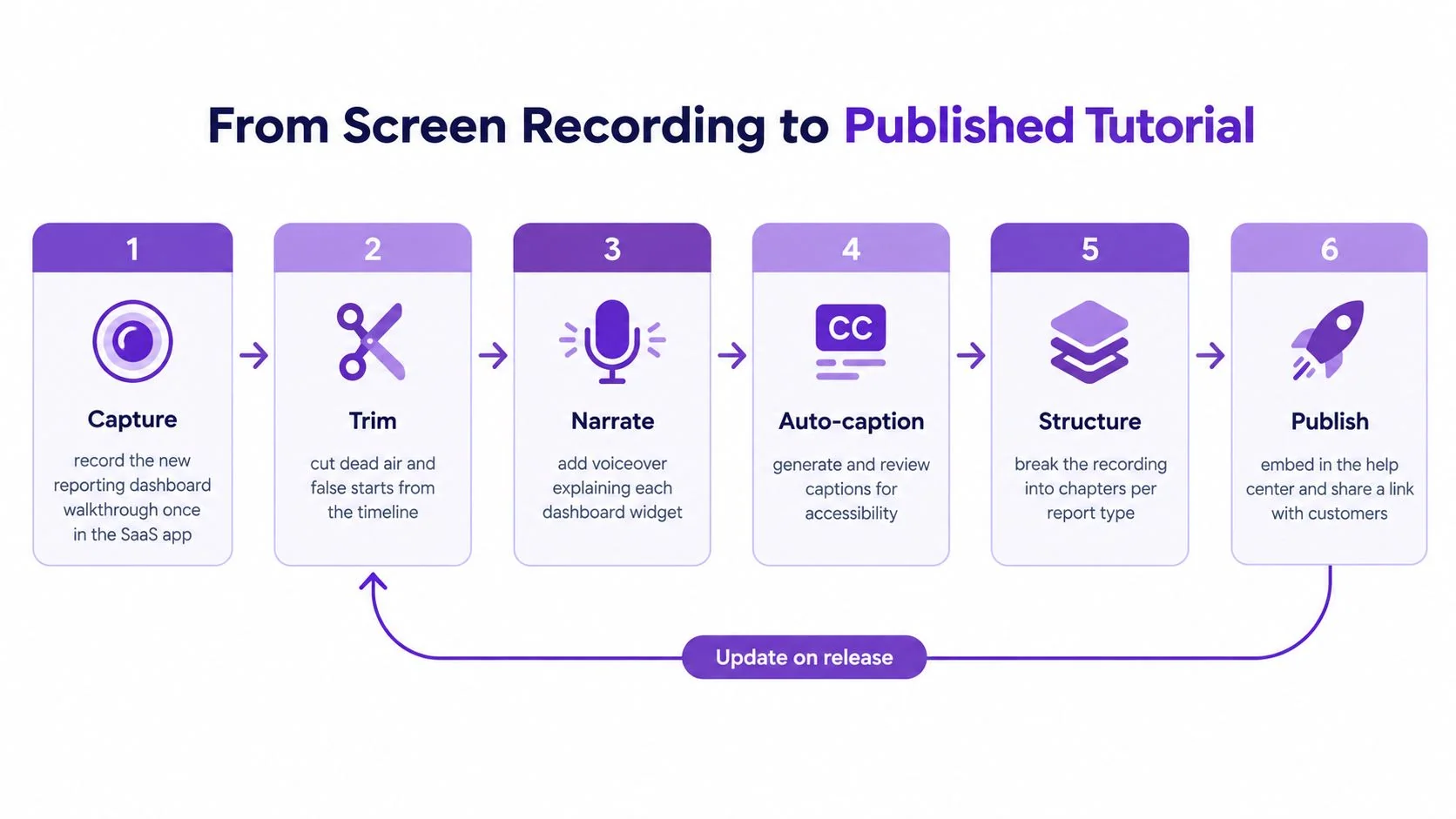
Capturing a usable source
Can the creator record the actual application and choose whether to explain the task while recording? Does the capture make important clicks and screen states clear? Can the creator avoid or remove sensitive information before sharing? These questions matter more than recording length or visual polish.
Microphone narration and computer audio are different inputs. A spoken explanation may help the author clarify a decision; application sounds are useful only when they help a learner understand the task. A silent recording can also work if the author will write or add narration afterward.
Editing the explanation
Can an author correct an inaccurate instruction without recording the entire task again? Can a reviewer check the wording, steps, screenshots, and narration before the tutorial is shared? If the tool produces several outputs, ask what the author must update in each one after an edit. Do not assume that changing a script automatically changes captions, timing, screenshots, or every published copy.
Creating a reference, not just a video
Can learners scan numbered steps and find the part of the task they need? Are screenshots tied to the correct instructions? Does the tutorial say what access and starting state are required, what should appear at the end, and what to do if a predictable step fails? A written guide and a video can serve different needs even when they begin with the same demonstration.
For one concrete product example, Tutorial AI’s software-training page describes recording with or without voice, generating an AI-narrated tutorial video and a written guide with screenshots, and reviewing or editing the script, narration, and steps before sharing. Those are product-specific capabilities, not requirements that every tutorial tool meets.
Where Teams Use Tutorial Software
Tutorial software is useful when a task needs to be explained repeatedly and the learner benefits from seeing the application in action. The right format still depends on the question, the audience, and how often the workflow changes.
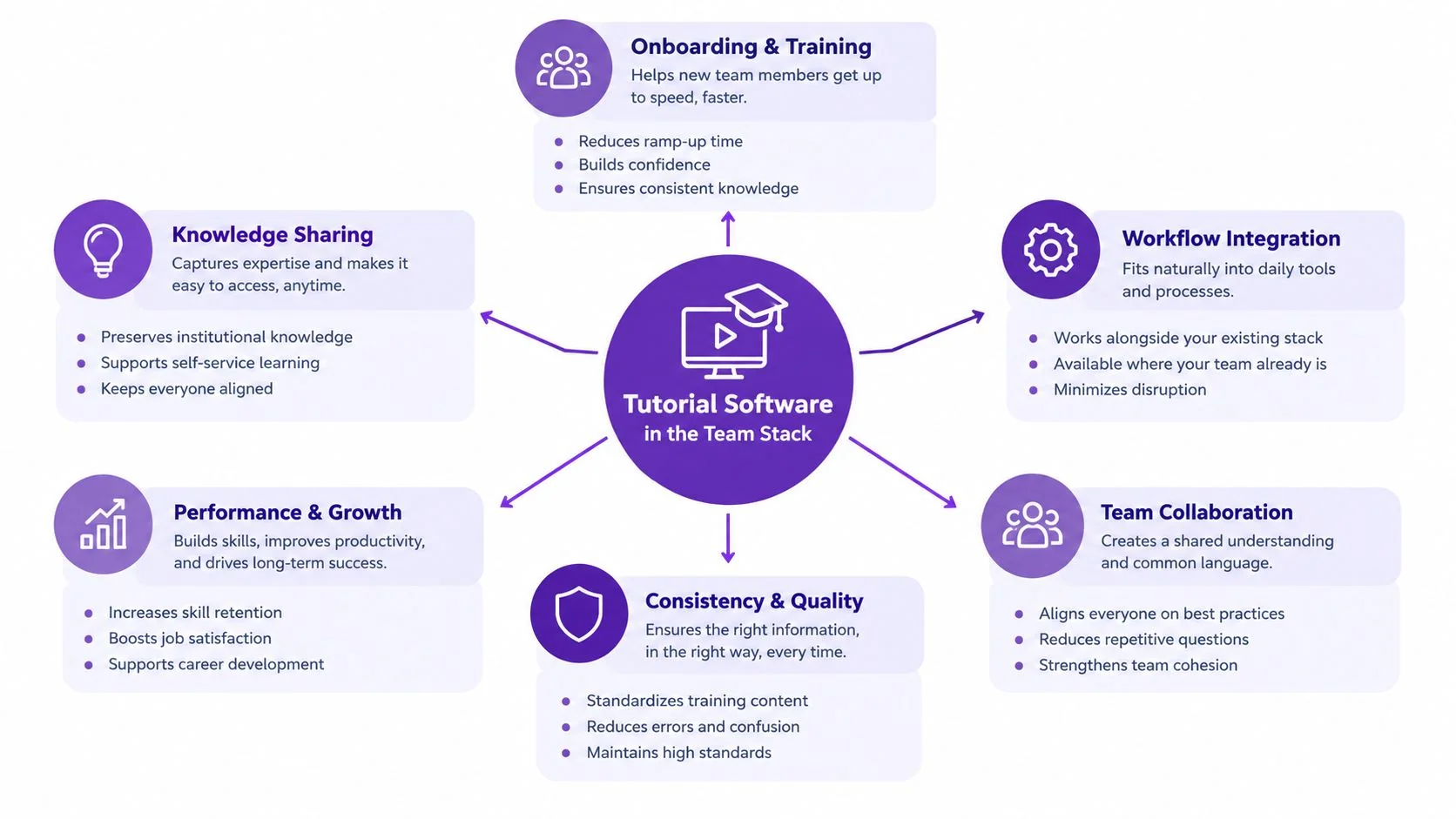
Support and customer education
A support team can answer a recurring product question with a task-specific walkthrough. Customer education can use the same approach when customers need to move through several screens and confirm that a setting or report is correct. Keep the tutorial focused on the customer’s task rather than turning it into a tour of the product.
Operations and internal training
An operations or learning team can document how an experienced employee completes a routine process. The tutorial is most useful when it states the required access, shows the decision points, and includes a check the learner can perform. A short text instruction may be sufficient for a simple, stable task.
Product and release education
When a workflow changes, a team may need to show both what to do now and which older instruction no longer applies. A focused tutorial can help explain that change to staff or customers. Assign an owner to review the instructions against the current interface before sharing or updating them.
Tutorial Software vs. Screen Recorders, LMSs, and Docs
These categories overlap. Some screen recorders offer editing and transcription; some documentation products generate steps from a capture; some LMSs include authoring features. The table describes typical starting points, not guarantees or hard limits. Compare individual products against the team’s actual task.
| Tool category | Typical starting point | Typical output | Question to check |
|---|---|---|---|
| Screen recorder | A captured screen session, sometimes with audio | A shareable recording, often with editing options | Does it also provide the structured steps or guide the team needs? |
| Learning management system | Courses, learners, and training activity | Learning content, assignments, or tracking, depending on the product | Does it author a tutorial from the demonstrated workflow, or mainly deliver one? |
| Documentation tool | Written reference content, sometimes supported by captures | Searchable pages and guides | Can it show the motion or application state this task requires? |
| Tutorial authoring tool | A demonstrated task or planned instructional sequence | Video, written steps, screenshots, or other tutorial formats, depending on the product | Which outputs can the author create, review, and maintain without duplicating work? |
The categories work best as a decision aid. Choose a screen recording if viewers only need to watch what happened. Choose a documentation page if a concise lookup answers the question. Consider tutorial authoring when the task needs a guided demonstration, a usable reference, or both. Use an LMS when course delivery and learner management are the primary requirement, and check whether a separate authoring tool is needed.
For more on the authoring category, see tutorial creation software. For teams deciding how to structure repeatable internal processes, workflow documentation is a related starting point.
Hypothetical Example: Documenting a Report Filter for a New Customer
This example is hypothetical. A customer education specialist needs to show a new customer how to filter a report to a selected region, save the view, and confirm that the filter is active. The intended outputs are a short video and a written guide with screenshots.
Prerequisites: Prepare a safe sample workspace that contains no private customer information. Confirm that the demonstrator has the role and access needed to open and save the report. Add sample data with more than one region so the filter produces an observable change. The learner will need equivalent access and data when following the tutorial.
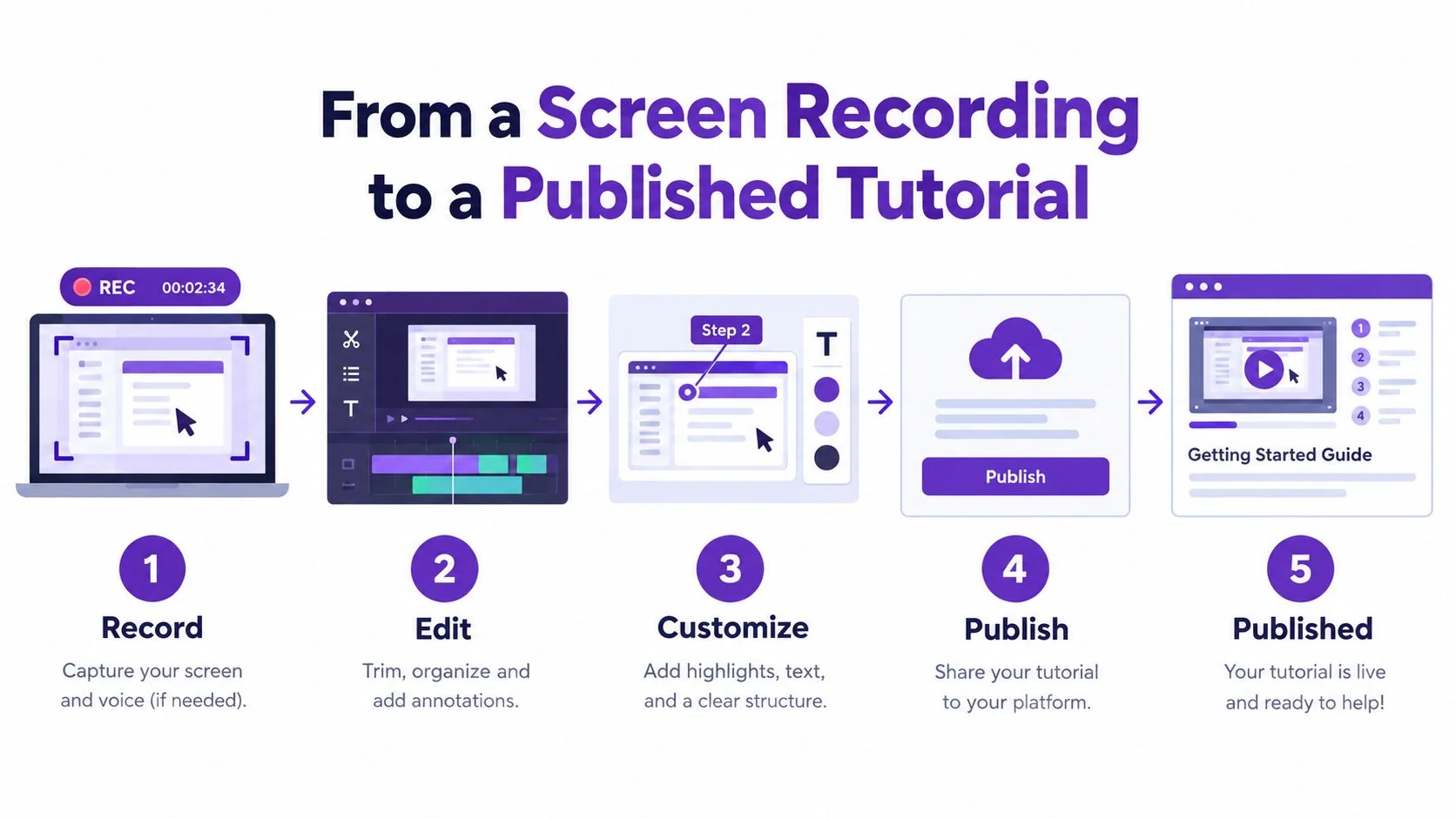
- Record the starting state. Open the sample workspace and show the unfiltered report. Say or note which report the learner should open and what access it requires. Record with voice if that makes the explanation clearer, or capture silently and add narration later.
- Demonstrate the task. Open the filter control, select the sample region, apply the filter, and save the report view. Pause briefly on each relevant screen state so an unfamiliar learner can identify the control and the result.
- Review the video instructions. Remove false starts and check that the narration or script names the controls shown on screen. Confirm that the video explains why the chosen region is being applied rather than merely showing clicks.
- Review the written guide. Create numbered instructions with screenshots of the report, filter selection, and saved view. Check each screenshot and step against the current interface. Add the prerequisites and the success check below before sharing.
- Verify and share. Follow the instructions in a fresh sample session. The visible success check is that the report shows only the selected region’s sample data and the saved view displays the chosen filter when reopened. Share the video and guide only after both agree with the demonstrated task.
One failure and recovery: If the filter produces an empty report, return to the unfiltered sample report and confirm that sample data exists for the selected region. If it does not, choose a region present in the sample data, reapply the filter, and update the tutorial to match the successful demonstration.
The goal is not to capture every menu in the reporting area. It is to leave a new customer with a specific task, a clear starting point, and a result they can recognize.
How to Evaluate a Tutorial Tool
Use a real task from the team’s queue rather than a generic demo. Ask the prospective tool to handle the entire path from a safe source recording to a reviewed output.
- Task fit: Can the author show the actual workflow clearly, including its starting state and success check?
- Output fit: Which video, text, screenshot, or other formats does the product create, and which require extra work?
- Editability: Can a reviewer correct the script, narration, instructions, and screenshots where needed? What must be updated separately?
- Privacy: What options exist to keep sensitive workspace information out of the capture and final asset?
- Review: Can the team inspect the video and guide for accuracy before either is shared?
- Maintenance: When a control changes, which source and published outputs need manual revision?
- Destination: Can the finished asset be shared in the place learners already use? Check the required format rather than assuming an integration exists.
A support team may prioritize fast corrections to frequently asked questions. An operations team may prioritize clear prerequisites and review. A learning team may need to compare authoring features with the delivery and tracking functions of its existing tools. The choice follows the job, not the label on the product.
Choosing a First Task
Start with one recurring question that requires a visible action inside software. Write down the learner’s role, the safe workspace or data needed, the desired result, and a likely failure. Then record the correct path and check whether the resulting instruction works for someone who did not attend the original demonstration.
If the task only needs a quick visual reminder, a recorder may be enough. If it needs searchable reference, a documentation page may be enough. When the team needs to turn a demonstrated task into both a reviewed video and written steps, tutorial software is a category worth evaluating.
To explore that recording-to-video-and-guide workflow, Start free trial.