The recording looks finished. The narration sounds clear, the cursor lands on the right controls, and the release announcement is waiting. Then a support reviewer tries the workflow with a learner account and discovers that the opening screen depends on permissions the tutorial never mentions.
A software tutorial quality checklist before publishing should catch that failure before customers do. The release standard is straightforward: a representative learner can start from the stated conditions, complete the task, recognize success, recover from a likely mistake, and access the instructions in a usable format.
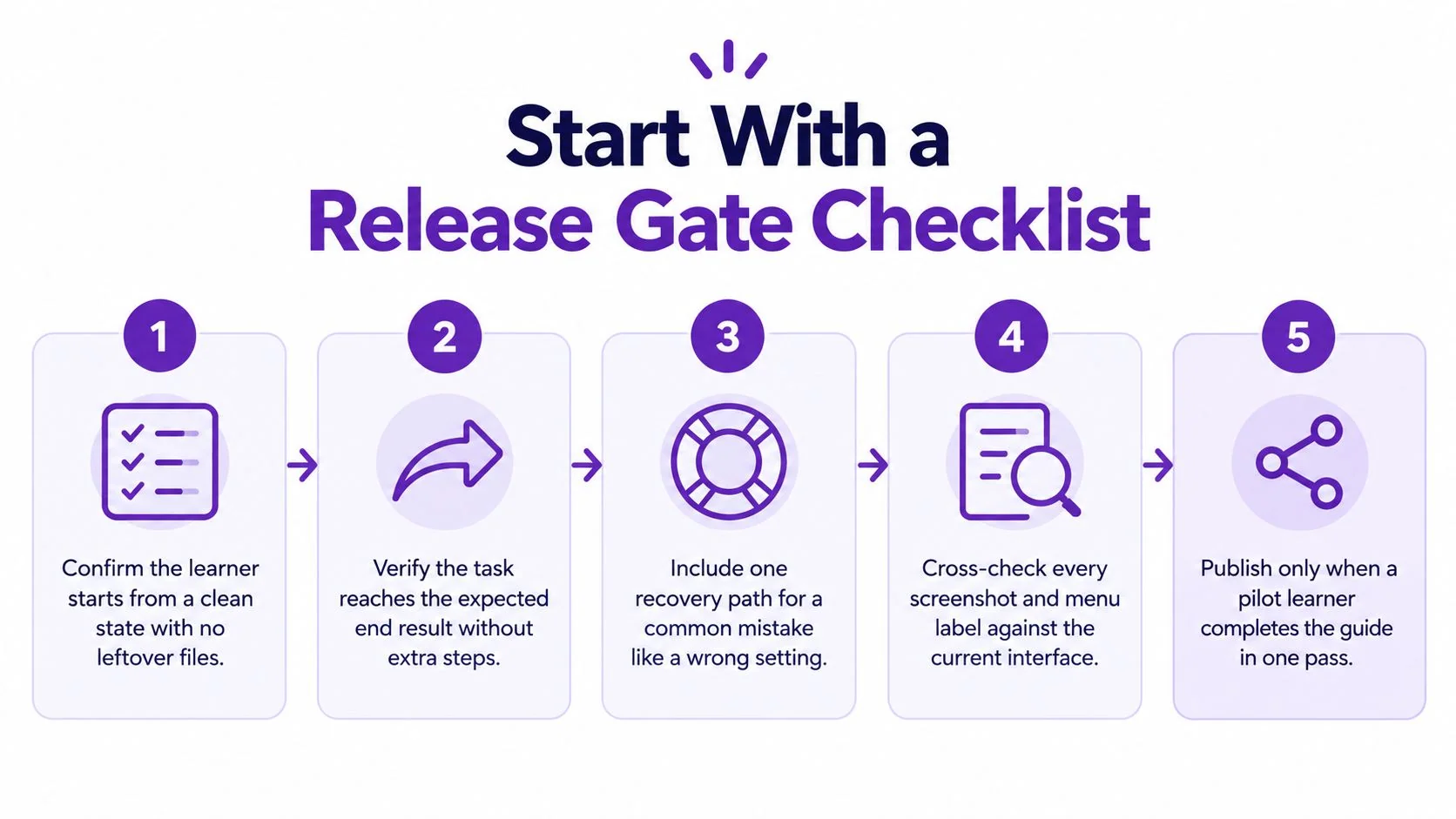
Start With a Release Gate Checklist
Treat the tutorial as a release artifact, not merely a finished video. A polished recording can still teach an incomplete procedure, hide a prerequisite, or leave learners unable to tell whether their work saved.
The release lead should assign a reviewer and retain evidence for each gate. A checkbox without a test result isn’t enough.
Use observable acceptance criteria
- Starting state: A reviewer can reproduce the opening screen in a clean test environment with the stated permissions and prerequisites.
- Task completion: The demonstrated procedure reaches the intended outcome without undocumented actions.
- Recovery: The instructions explain a likely failure and a safe route back to the task.
- Editorial accuracy: Interface labels, screenshots, narration, and written instructions agree with the current software.
- Access and delivery: The published formats and controls work for the intended audience.
- Ownership: A named person approves release and remains responsible for maintenance.
The following checklist provides a visual reminder of the core learner-facing gates.
Separate a blocker from a preference
A missing permission requirement is a release blocker when it prevents completion. A slightly awkward transition may be an editorial improvement rather than a reason to delay useful instructions.
Use usability principles to make that distinction. The Nielsen and Molich usability framework supports reviewing visible feedback, familiar terminology, consistency, error prevention, recovery, and documentation. Translate those principles into evidence, such as a captured confirmation state or a recorded recovery test.
Release rule: Block publication when a learner can’t complete the intended task or when the procedure could produce an incorrect or risky result.
For teams organizing a broader asset review, the resource explaining how Font Checker Pro works is an adjacent reference for digital-asset auditing. Keep tutorial approval focused on instructional evidence rather than treating asset presentation as proof of usability.
The checklist should complement professional judgment. Product specialists verify correctness, editors check explanations, accessibility reviewers examine access barriers, and representative learners expose assumptions that internal experts may overlook.
Prepare the Software Tutorial Before Recording
Preparation should produce a testable task definition, not a broad topic such as “account settings.” A useful definition names the learner, the job, the starting conditions, and the visible result.
For example, “workspace administrators configure a newly released notification rule from the workspace settings screen” is specific enough to review. “Explain notifications” leaves the recorder deciding scope while filming.
Define the procedure before the scene list
Use a compact planning record that the recorder and reviewer can both consult.
Pre-production review decisions
| Decision | Write down | Release evidence |
|---|---|---|
| Audience | Learner role, familiarity, and permissions | Test account matches that role |
| Task | The action the learner needs to complete | Observable outcome is defined |
| Prerequisites | Required access, data, settings, and dependencies | Fresh walkthrough confirms them |
| Starting state | Opening screen and existing configuration | Reference screenshot matches |
| Interface | Product version or identifiable release state | Current-interface review recorded |
| Recovery | Likely mistake and safe correction | Recovery procedure tested |
| Scope | Included actions and excluded branches | Script stays within the promised task |
The audience statement should also identify what the tutorial won’t explain. An administrator procedure shouldn’t assume that an end user can access the same settings.
Teams that need a stronger connection between audience, objective, and practice can use these instructional design best practices during planning. The immediate deliverable remains a procedure that someone else can execute.
Build a scene list around decisions and results
Each scene should specify what appears before the action, what changes during it, and what confirms completion. Include the interface location, the action, the expected result, and any warning that must appear before commitment.
Example, documenting a newly released notification feature: In a hypothetical SaaS product, a workspace administrator opens notification settings, creates a rule for failed imports, selects a destination, and saves. The tutorial should show the initial settings state, the relevant fields, the save action, and the enabled rule afterward.
The confirmation isn’t necessarily a temporary notification. The reviewer should identify a durable result, such as the saved rule appearing in the list, and verify it in the current interface.
- Script: Name controls using their actual labels and explain unfamiliar terms.
- Scene list: Identify which screen area must remain visible during each action.
- Recovery note: Explain what to check if the destination isn’t available.
- Verification step: State how the learner confirms that the rule is active.
Keep narration for information the screen doesn’t communicate clearly: intent, consequences, prerequisites, and decisions. Reading every visible label aloud can crowd out the explanation learners need.
For written procedures, Microsoft’s procedures-and-instructions checklist recommends no more than seven numbered steps, preferably fewer, complete sentences, explicit UI locations, and finalizing actions such as selecting OK or Apply. Treat that guidance as a reason to split an overloaded procedure into meaningful subtasks, not permission to omit necessary actions.
Capture Clear Screen and Audio Evidence
The capture session should preserve enough evidence for a learner to understand the software state. Attractive framing helps, but an unreadable field or missing confirmation makes the recording unsuitable for instruction.
Before recording the full workflow, capture a short sample and inspect it at the intended viewing size. Listen through the same playback route a reviewer will use.
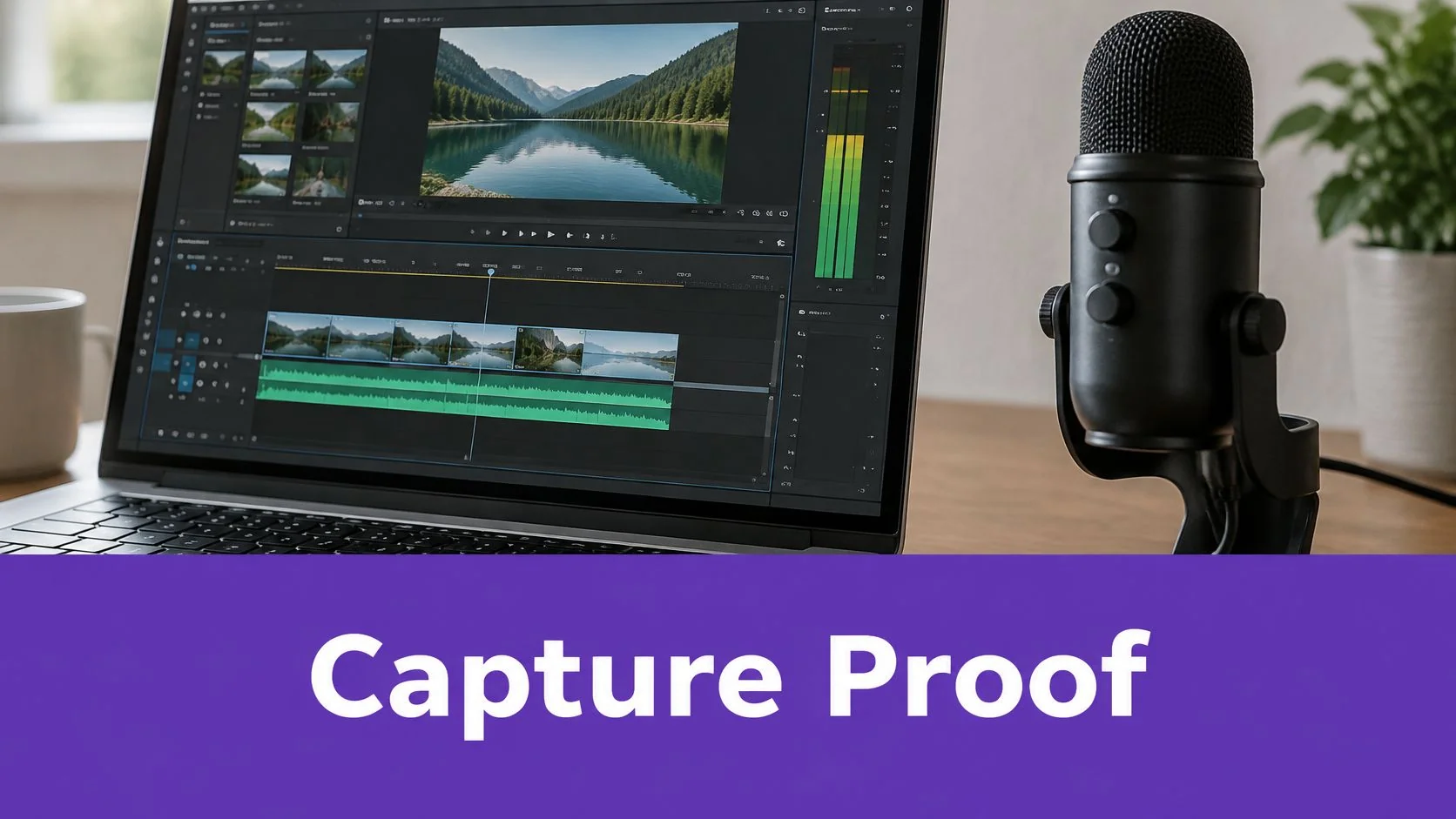
A practical recording workspace keeps the display and narration equipment easy to monitor.
Make the interface understandable before adding emphasis
Prepare a dedicated demonstration environment. Close unrelated applications, suppress notifications where permitted, remove personal browser content, and replace sensitive records with appropriate test data.
Don’t rely on later blurring to rescue an unnecessarily exposed workspace. The recorder should know which fields, notifications, and account details must never enter the capture.
Set the application window so that the relevant controls remain legible in the final placement. A recording that looks clear on the author’s monitor may need different framing when embedded inside a narrow help-center article.
- Opening frame: Hold the starting state long enough for the learner to locate the relevant area.
- Pointer movement: Move deliberately between targets rather than circling or hovering without purpose.
- Menus and dialogs: Keep the surrounding context visible when it explains where a control belongs.
- Feedback: Capture loading, validation, and confirmation states that affect the procedure.
- Zoom and emphasis: Use them to clarify small targets, not to conceal navigation learners must reproduce.
For teams distinguishing an instructional walkthrough from a feature showcase, SubmitMySaas’s walkthrough for creating demo videos is a related planning resource. For a task tutorial, the acceptance test remains whether the learner can reproduce the workflow, not whether the feature looks persuasive.
Check microphone audio and system audio separately
Microphone audio captures the presenter’s spoken explanation. System audio captures application or computer sounds through the recording setup’s supported audio path.
The production reviewer should confirm which sources are present. A visible application alert doesn’t establish that its sound was captured, and a working microphone doesn’t establish that computer audio is enabled.
Listen for clipped words, background noise, changes in voice level, and application sounds that mask speech. If an alert carries instructional meaning, retain it appropriately and flag it for the caption review.
Exact recording controls depend on the operating system, recorder, permissions, and current product version. The production notes should point to the applicable official documentation rather than recycling menu paths from a different environment.
A successful microphone test proves that speech was captured. It doesn’t prove that the final audio mix explains the task.
If a presenter appears on camera, check lighting, framing, and background distractions. If the face adds no instructional value, the team can prioritize screen space instead of including it by default.
Retain a capture log
The recorder should hand over the recording with enough context to investigate problems later.
| Capture field | Record |
|---|---|
| Software state | Product version or release identifier and demonstration account role |
| Device | Computer, operating system, and display arrangement |
| Microphone | Selected input and relevant recording settings |
| System audio | Intended source, capture route, and whether it was verified |
| Environment | Test data, permissions, and starting configuration |
| Known issues | Missed actions, interruptions, sensitive frames, or material to recapture |
An editor shouldn’t have to infer whether an absent sound was intentional or whether the software changed after capture.
Edit for Clarity and Attention
The strongest instructional edit preserves cause and effect. It removes distraction without making the workflow appear simpler than it is.
A reviewer should watch for cuts that skip a required selection, hide a processing state, or jump into a dialog without showing how it opened. Those cuts can make a video feel efficient while leaving the written procedure impossible to follow.
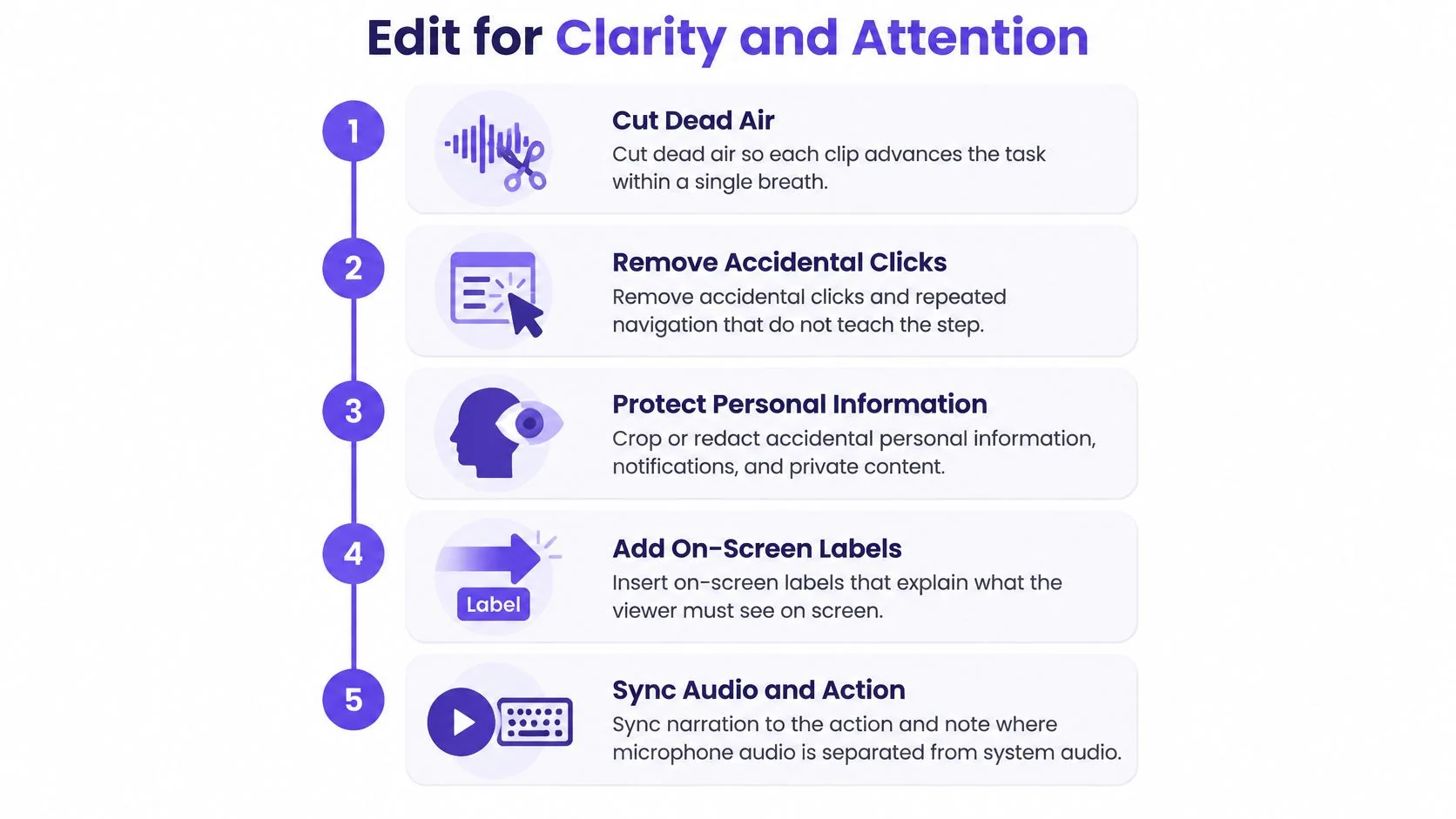
Use the editing checklist as a review sequence, not as a demand to accelerate every moment.
Preserve the reasoning behind the action
Cut dead air, accidental clicks, repeated navigation, and unrelated conversation. Keep pauses that let the learner locate a field, read a warning, or inspect a result.
If a processing delay is shortened, make the transition understandable. Don’t imply that a background operation completes instantly when the learner may need to wait or check its status.
Example, revising the notification-rule walkthrough: An accidental visit to a profile menu can disappear. The selection of the notification destination must remain because it determines where the alert goes.
The editor should also distinguish a real error from an intentional recovery demonstration. An unexplained mistake confuses the main procedure; a clearly introduced recovery path teaches a useful diagnostic action.
- Terminology: Match the visible interface, including capitalization where it helps recognition.
- Callouts: Identify a target or consequence without covering the control.
- Privacy: Inspect the finished asset for exposed names, messages, tokens, and unrelated records.
- Success states: Retain the visible result after each meaningful task transition.
- Pacing: Give unfamiliar decisions more attention than routine pointer travel.
Reconcile narration, visuals, and the written guide
Review the script against what the final recording shows. Then compare the narration with the written instructions and screenshots.
A sentence can be grammatically correct yet describe an obsolete label. A screenshot can be sharp yet show the state after the action when the learner needs the state before it.
For generated material, the human review sequence should remain explicit: examine the draft script, correct wording, review narration, inspect steps and visuals, and compare the finished outputs with the demonstrated task. Generated content isn’t approved content.
The following embedded video can be kept alongside the editorial review materials.
The product specialist should verify procedural correctness while the editor checks whether the explanation gives learners enough context. Neither review substitutes for the other: an accurate sequence may still be difficult to understand, and a clear explanation may still describe the wrong behavior.
Editorial test: Every retained action should either advance the task, explain a decision, demonstrate recovery, or verify the result.
Finish with a consistency pass across all deliverables. Check that titles describe the same outcome, screenshots belong to the approved procedure, and the written guide doesn’t introduce an unreviewed alternative.
Record the approved asset versions. If narration or scene timing changes afterward, route the affected captions and localized versions back through review rather than assuming the earlier approval still applies.
Test Accessibility and Localization
Accessibility approval requires more than a caption file. The reviewer should examine whether learners can understand the instructions and operate the delivery experience without depending on a particular sensory or input method.
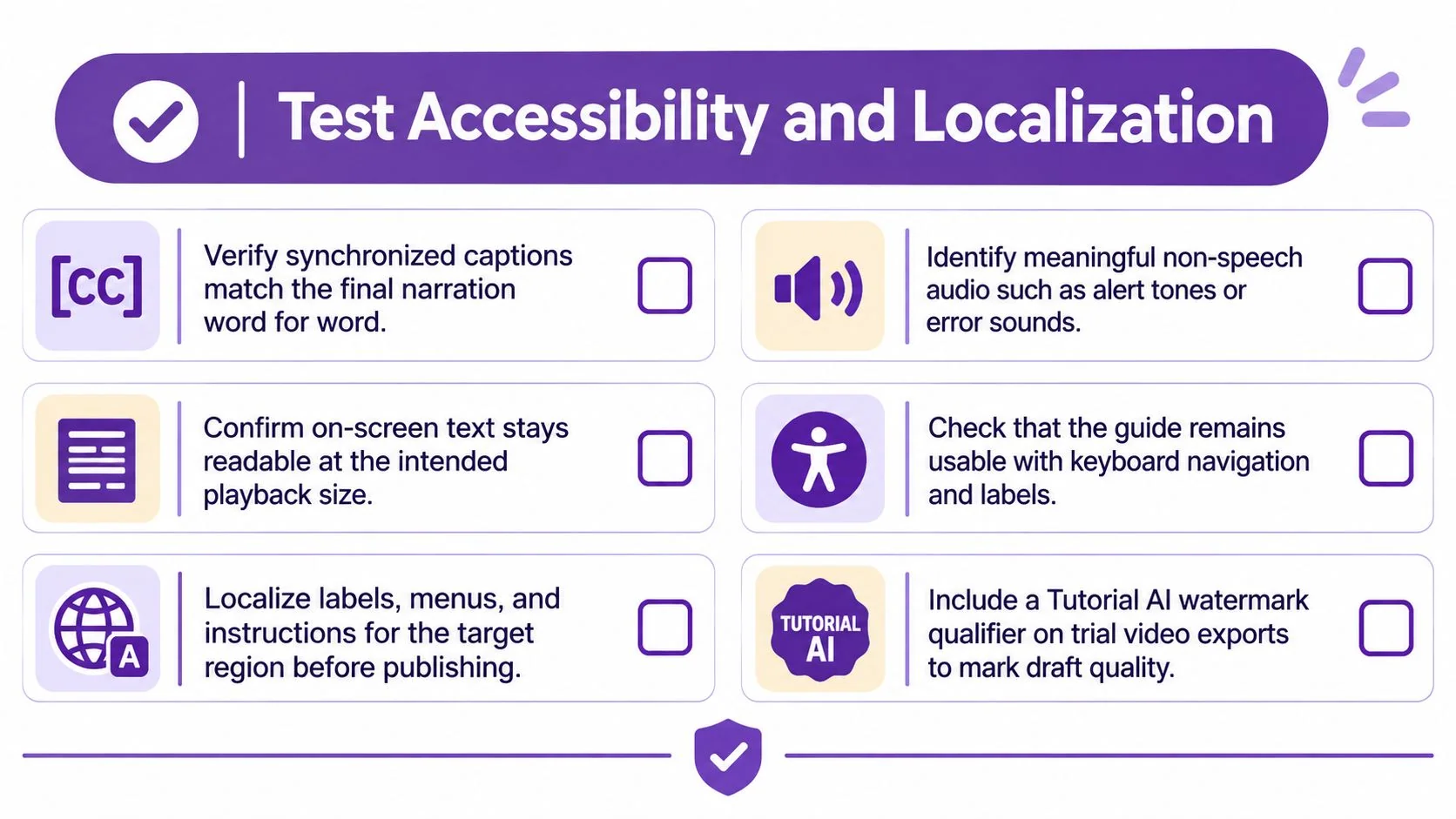
Use the following visual as a prompt for the accessibility and localization review.
Test distinct access needs separately
Captions should reflect the final speech, identify speakers when necessary, and convey meaningful non-speech audio. Check synchronization after the edit, not merely against the original recording.
A transcript serves a different reading experience. It should include the information required to understand the procedure, including essential visual actions that speech alone may leave unexplained.
- Muted playback: Check whether captions convey the explanation and relevant sounds.
- Visual-action description: Confirm that narration or accompanying text names the field, control, state, and result rather than relying on “click here.”
- Keyboard navigation: Operate the player and documentation controls without a mouse, including opening and closing overlays.
- Visible focus: Confirm that the active control can be located during keyboard use.
- Visual clarity: Review contrast, enlargement, callout placement, and instructions that might depend only on color.
W3C’s WCAG understanding guidance explains both caption requirements and keyboard accessibility under Success Criterion 2.1.1. Distinguish the tutorial’s delivery controls from the demonstrated application, and document product limitations rather than inventing a keyboard path the software doesn’t support.
Teams can use these video accessibility guidelines to organize the media review. Passing a practical checklist shouldn’t be presented as proof of complete conformance.
Review localization against the target interface
Localization needs a language reviewer who understands the task, not merely a fluent reader checking grammar. The reviewer should compare translated instructions with the interface learners will encounter.
A translated control name may be inappropriate if the product still displays that control in English. Conversely, an English screenshot may be misleading when the target audience uses a localized interface.
Inspect translated narration, captions, screenshots, cursor targets, and callouts together. Longer wording may require more screen time, and revised timing may separate a spoken instruction from the action it describes.
“Has captions” and “is accessible” are different approval decisions.
Administrators and end users should also remain distinct when their permissions, terminology, or workflows differ. A localized administrator tutorial shouldn’t be approved through an end-user test because both groups speak the same language.
Keep an exception log
| Failed check | Evidence to retain | Required owner action |
|---|---|---|
| Caption mismatch | Segment and corrected wording | Revise and recheck synchronization |
| Unexplained visual action | Frame and missing description | Add equivalent explanation |
| Keyboard barrier | Control and reproduction steps | Fix or provide a reviewed accessible route |
| Localized label mismatch | Target interface and instruction | Correct text or replace the visual |
| Obscured target | Playback view showing overlap | Reposition text and retest |
Every unresolved issue needs an owner, impact assessment, and disposition. Critical access barriers shouldn’t disappear into a general list of future improvements.
Validate and Distribute the Tutorial
The decisive review happens when someone from the intended audience attempts the task without coaching. Internal approval establishes that specialists consider the tutorial correct; learner testing checks whether the instructions actually work for their audience.
Observe behavior rather than approval
Give participants task prompts that describe the outcome without revealing the procedure. Ask them to use the draft as they would use published help, and record where they hesitate, take a wrong turn, misunderstand a result, or ask for assistance.
The facilitator shouldn’t rescue the task at the first pause. If intervention becomes necessary, record what prevented independent completion and distinguish assisted completion from unassisted completion.
- Completion evidence: Retain the final state, not merely the participant’s statement that the task is finished.
- Confusion evidence: Note the instruction, frame, or label associated with the hesitation.
- Recovery evidence: Check whether the learner can diagnose and correct the chosen failure.
- Revision evidence: Connect each material finding to a change and a retest result.
Don’t treat a small qualitative test as a guarantee that every issue has been found. Different audience segments may need separate validation when their starting conditions or tasks materially differ.
Approve the complete publishing destination
Test the final page or delivery location using learner permissions. A reviewed video isn’t a complete release if its embed fails, the transcript is inaccessible, or the help article points to an obsolete guide.
Confirm the title and description match the task rather than promising a broader course. Review responsive layout, captions, transcript access, screenshots, player controls, related links, and any download or sign-in steps that belong to the learner journey.
For channel planning, these tutorial distribution strategies can support the choice of help-center placement, training context, or release communication. Distribution approval should still rest on the actual destination test.
In regulated training environments, Cura Academy’s resource on preparing to avoid common CQC failings is a separate sector-specific reference. Keep that compliance review distinct from tutorial usability approval, and retain the evidence required by the responsible organization.
Assign ownership beyond launch
Use a final release record rather than an informal message saying the tutorial looks ready.
| Release decision | Accountable role | Retained evidence |
|---|---|---|
| Procedure is correct | Product or process specialist | Current-interface walkthrough |
| Explanation is usable | Education or documentation lead | Learner findings and resolved blockers |
| Access checks pass | Accessibility reviewer | Test record and exception decisions |
| Destination works | Publishing owner | Learner-permission delivery check |
| Maintenance is assigned | Content owner | Review date, triggers, and escalation route |
Keep drafted, approved, published, and measured as separate states. Approval doesn’t establish that the page is live, and publication doesn’t establish that learners succeed.
After launch, the owner should review task-related support tickets, unsuccessful searches, confusing replay points, abandoned workflows, outdated visuals, and localization feedback where those signals are available. Set review triggers for product changes and repeated learner failures, then route revisions through the affected gates.
The final quality check is therefore both a release decision and a maintenance commitment: the team knows what passed, what evidence supports approval, and who responds when the tutorial stops matching reality.
For teams evaluating a recording-to-tutorial workflow, Tutorial AI offers screen-recording-based tutorial videos and written guides with screenshots, with generated scripts, narration, steps, and visuals available for review and editing. A practical next step is to visit the product, use a familiar software task as a pilot, and apply this release gate before sharing the result.