A support lead has a clean walkthrough ready, a new hire waiting for it, and a recorder that won’t start because macOS blocked screen capture. Someone else hits record anyway, captures a customer record and a live call, and shares the link externally. Both problems come from the same gap, treating permission as a single click instead of a set of controls that need owners and proof.
Permission Checklist at a Glance
A usable screen recording permissions checklist for employee training works as a gate, not a reminder. No row passes on verbal assurance alone.
| Control | What to Confirm | Owner | Pass Condition |
|---|---|---|---|
| Purpose and scope | Training purpose and captured items named in writing | Training lead | Scope note saved before capture |
| Capture target | Single window or browser tab, not the full display | Recorder | Target logged with the asset |
| Audio source | Microphone and system audio decided separately | Recorder | Audio setting noted for each take |
| Participant notice | Everyone seen or heard is told before recording | Training lead | Notice text saved with the asset |
| Consent or objection path | Written consent where required, plus a non-recording option | HR or legal | Dated consent record on file |
| Sensitive-data check | Accounts signed out, notifications off, sensitive data masked | Recorder | Frame review passed |
| Platform permission | OS and browser access granted to the exact app used | IT | Test recording plays back |
| Retention and access | Deletion date set, viewer list kept, external links off | Training owner | Settings screenshot filed |
Why purpose comes first
Purpose controls every later decision. A scope note that says “recording” tells nobody whether the take includes the screen, microphone, webcam, notifications, or private messages, so reviewers can’t judge whether the capture stayed within bounds. Name each captured item, the training task it serves, the intended audience, and where the file will live.
That precision also limits scope creep. A walkthrough approved for internal onboarding isn’t automatically cleared for customers, contractors, or a public help center.
Gate rule: If the purpose, audience, recording tool, or retention policy changes, the asset goes through approval again. The old pass doesn’t carry over.
Apply the table per recording type, not once per team. A silent CRM click-through and a narrated support call carry different risks, even when the same person records both on the same laptop.
Audio and Consent Rules to Settle First
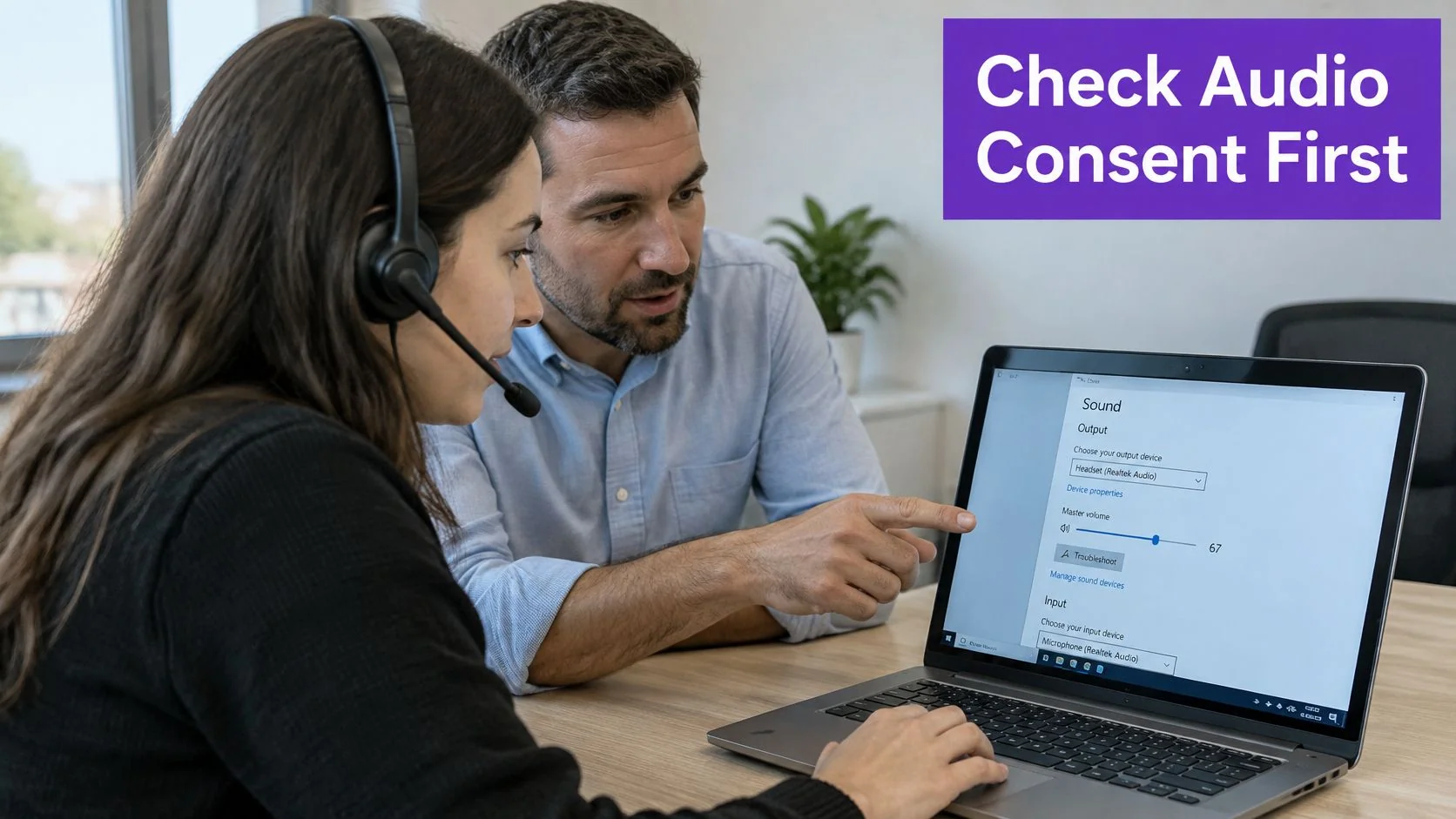
Microphone audio and system audio are different permissions with different risks, and recorders routinely confuse them. A microphone captures the narrator and anyone speaking nearby. System audio captures what the computer plays, including meeting voices, alert sounds, and videos containing other people’s speech. Treat them as separate controls on the checklist, each with its own default and its own consent trigger.
| Audio Option | What It Captures | Consent and Privacy Risk | Recommended Default |
|---|---|---|---|
| Silent screen capture | Screen content only, no sound | Lowest audio risk, but names and notifications on screen still need review | Use for silent walkthroughs |
| Microphone narration | Presenter’s voice and nearby sound | Coworkers in the room may be heard, so announce before recording | Off unless narration is planned |
| System audio | Computer playback, including meetings, alerts, and videos | Can capture other people’s voices and private calls, the highest risk | Off, enabled only for a named and checked source |
Silent capture is the safest starting point for a software demonstration. Narration can be added later in a controlled take, while an accidental voice in the original recording is much harder to remove from every copy and transcript. When system audio is genuinely needed, name the source in the scope note before the session, such as a specific product video, so a stray notification sound or background call doesn’t slip in unreviewed.
Consent rules that change the setup
Screen capture and conversation recording aren’t governed by the same rules. The Davis Wright Tremaine summary of employee communication monitoring notes that the federal Electronic Communications Privacy Act generally restricts intentional interception of oral, wire, and electronic communications, with consent and legitimate-business-purpose exceptions that may apply. State law can be stricter: at least 11 states, including California, Connecticut, Florida, Illinois, Maryland, Massachusetts, Michigan, Montana, New Hampshire, Pennsylvania, and Washington, require all-party consent for audio recording in specified circumstances.
That variation kills any universal one-party rule for a distributed team. A recorder sitting in a one-party-consent state can still capture a participant in an all-party state on the same take. Legal review should confirm the jurisdictions involved for each recording type, especially customer calls and cross-border meetings.
- Announce first: State that recording is starting, what’s captured, and why, before anyone speaks on the take.
- Record the permission: File who agreed, what they agreed to, and when, alongside the asset rather than in a chat thread.
- Separate devices: Treat company systems and personal devices or accounts as different cases, since personal access raises added privacy and authorization risk.
Why a signed release isn’t enough
Consent inside employment is weak evidence on its own. The power imbalance between employer and worker can make voluntary participation hard to demonstrate, so a stack of signed forms doesn’t settle the question. An employee who feels unable to refuse hasn’t meaningfully consented.
Pair any consent record with a documented purpose and lawful basis, advance notice, a non-recording alternative such as a written walkthrough, and a withdrawal process that names who to contact and what happens to existing files. Complete a privacy or data-protection impact assessment before rollout, and never record a live call unless every participant has been told.
Practical defaults make this repeatable. Keep the microphone off unless narration is planned, run an explicit preflight prompt that forces an announce-first step, store participant acknowledgment with the asset, and pause or redact when a sensitive window appears. OS-level access is only the technical half of the job; the consent records and audio defaults are what make each recording defensible when it’s reused later.
How to Grant Screen Capture Access on Each Platform
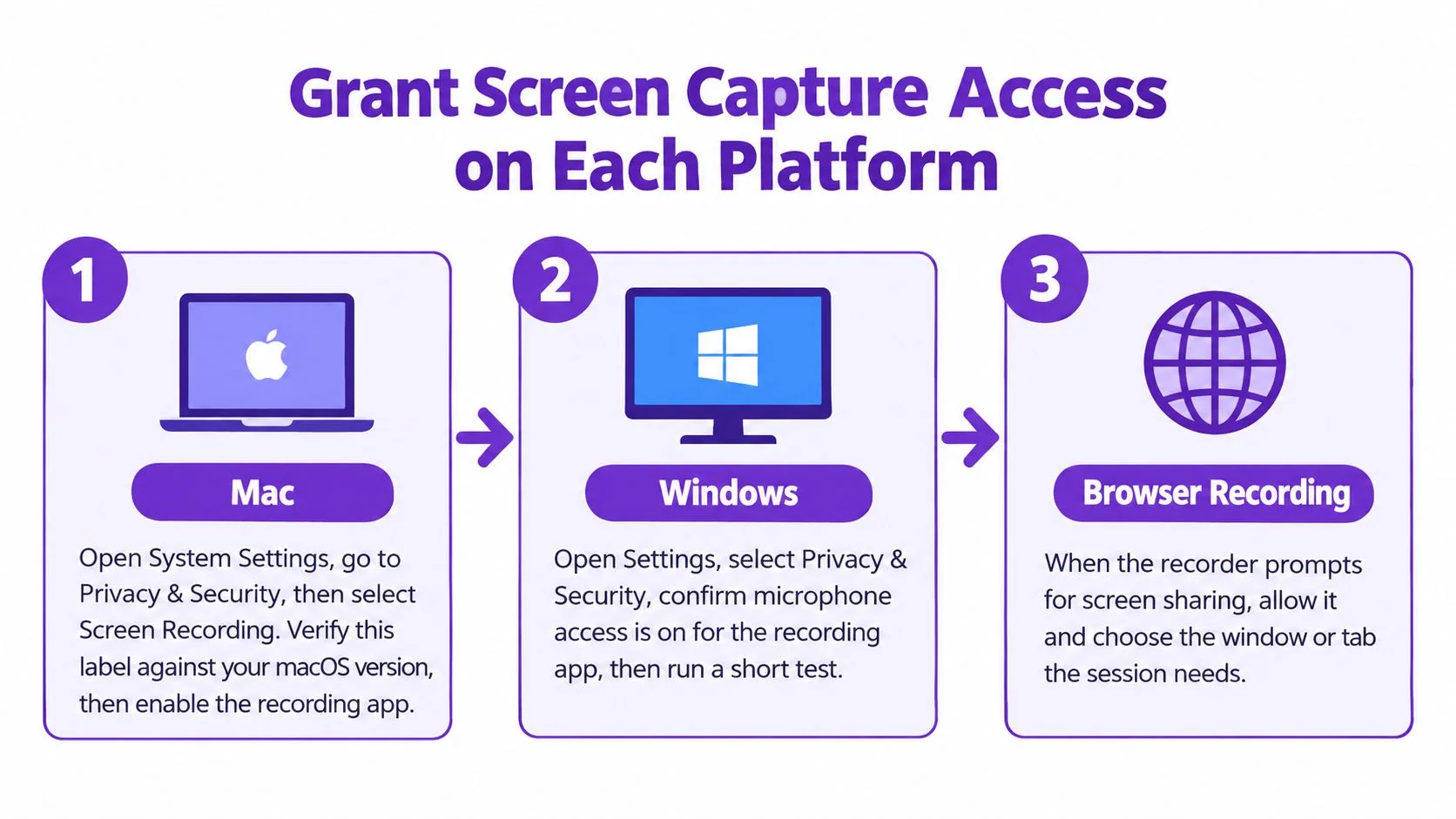
Platform setup fails most often because permission lands on the wrong app: the browser has access while the recorder doesn’t, or an old tool kept its toggle after the review picked a different one. Grant access to the exact browser or recording application the session will use, in the order a recorder meets each device.
Platform steps in order
- Mac: Open System Settings, go to Privacy & Security, then Screen Recording, and enable the exact browser or recording app. The Apple macOS help guide on controlling screen recording access controls access app by app, so verify the label against the installed macOS version, then quit and reopen the app if capture still fails.
- Windows: Open the recording app’s capture settings and choose a window or display for the session, then check Windows privacy settings for screen and microphone access for that app. Verify the current menu path on Microsoft’s official support pages before documenting it for the team.
- iPhone and iPad: Add Screen Recording to Control Center, then set the microphone on or off before tapping start. Decide that setting in advance rather than accepting whatever the last session used.
- Chrome: Start capture from the browser share picker, select a single tab or window, and decide whether tab audio is included each time the picker opens. A fresh selection per recording prevents the picker from reusing a broader source without warning.
- Approved recording tool: Record in the browser or app the review approved, following the vendor’s current official setup instructions checked on a dated basis before the pilot. Don’t substitute a personal recorder because it’s already installed.
OS approval is not organizational approval
An operating-system prompt only says the device will allow capture for that app. It says nothing about purpose, audience, or retention. Organizational approval still has to name the tool, the capture target, and whether system audio is included.
An OS prompt is a device setting. It is not permission from the business, the participants, or the data owner.
Treat the capture target as part of the approval itself. Classify it before granting anything, whether it’s a single window, a browser tab, or the entire display. Prohibit full-screen capture unless the workflow genuinely requires it, store the test result with the asset, and require reapproval when the tool changes.
Fixing Blocked or Failed First Recordings
The most common first failure is a blank or black recording. The cause is usually mundane, permission was granted to a different app than the one doing the recording, or the app never restarted after access was enabled.
| Symptom | Likely Cause | Fix |
|---|---|---|
| Blank recording or app missing from Screen Recording list | Permission not granted to the exact app | Enable access under Privacy and Security on Mac, then quit and reopen the app |
| Capture works only after a restart | Restart needed before access takes effect | Restart the app or the Mac, then retest |
| Other apps or desktop visible in the recording | Full display selected instead of a window or tab | Re-select a single window or tab and record again |
| No narration in the file | Microphone off or wrong input selected | Check the microphone setting before pressing start |
| Chrome tab recording has no page sound | Tab audio not included in the share picker | Tick the tab audio option when the picker opens, then retest |
| Other people’s voices in the audio | System audio on during a call or alert | Turn off system audio and re-record the take |
| Windows or iPhone capture fails with no permission prompt | Recording app not allowed in the device’s privacy settings | Check the app’s permission in the OS privacy settings, then retest on the same device |
A working method for diagnosis
Change one setting at a time, then retest on the same device and browser. Changing the app, the input, and the capture target together produces a working recording sometimes, but nobody learns which fix mattered.
Log the symptom, the setting changed, and the result in the asset record. The next recorder with a blank take then starts from a known answer instead of repeating the search.
Don’t troubleshoot around a privacy failure. A take containing other people’s voices or the full desktop isn’t a draft to salvage, it’s a take to delete and re-record under corrected settings.
Protect Sensitive Screens Before Pressing Record
Most sensitive-data leaks in training videos aren’t malicious. They’re a notification preview, a real customer name in a list view, or a token visible for two seconds during a screen transition. Prevention happens before record, not in the edit.
A clean take passes two separate checks. The OS check asks whether the recording app may see the screen at all. The content check asks whether what the screen shows should leave the team. Passing the first says nothing about the second, so the review below runs before every session, not only when permissions change.
Pre-record review
- Clean the environment: Sign out of personal accounts, close unrelated tabs, and turn off desktop notifications.
- Use safe data: Work in a sanitized training tenant or demo account, and mask credentials, customer records, tokens, and private messages.
- Narrow the frame: Capture a single window or browser tab rather than the full display unless the workflow needs the whole screen.
For example, a support lead recording a refund-approval walkthrough uses a training tenant, the tab shows a demo customer called Sample Co, and notifications stay off for the take. The viewer sees every required step against the live interface, and nothing sensitive leaks. Teams defining what counts as sensitive in the first place can use setting learning objectives for PII training to align the review with what employees are taught to recognize. The companion guidance on protecting sensitive information in tutorial recordings covers the same decisions at the asset level.
Review the final export frame by frame, not the raw take, since exports can include frames reviewers skim past. Fail the asset if a credential, personal data, or an unauthorized participant appears anywhere.
Review standard: Post-production blur is a control of last resort. A blurred export doesn’t prove the original capture was safe.
The Microsoft macOS permissions support page describes granting access to the specific application in use, and a restart may be needed before the change takes effect, but that device-level control does not replace reviewing what the recording shows.
When IT blocks capture, employees shouldn’t weaken device-wide settings to get moving. IT approves the specific application through managed settings, the business purpose goes on record, and someone verifies recording stops when the session ends. That approval covers the app, not the content, so the pre-record review applies on managed devices too.
Reuse, Captions and Publishing Permissions
Permission to press record doesn’t travel with the file. A walkthrough cleared for new hires on the support team can become a different disclosure when it’s embedded in an LMS, sent to contractors, or published for customers.
Check each version separately. Ask who appears or is heard, whether customer or coworker data is visible, which audiences can access it, and whether reuse after an employee changes roles was ever covered. Operations standardizing delivery across locations face the same audience question, which is why consistent onboarding for franchise store teams depends on defining who receives which version. A documented software tutorial approval workflow keeps those decisions attached to the asset rather than to memory.
Derivative outputs inherit restrictions
Captions, transcripts, screenshots, translated voiceovers, and retained source footage carry the same limits as the recording they came from. Tutorial AI can generate a written guide with screenshots from the same recording, with the script, narration, and steps editable before sharing, and those features should be confirmed on the current official product page before relying on them. Generated output still needs human review before publication.
Accessibility planning belongs at publication, not as a retrofit. The guide to creating accessible training videos notes that WCAG 2.2 requires captions for prerecorded audio at Level A, while audio description of important visual information is addressed at Level AA, and the European Accessibility Act became applicable in June 2025.
Accessibility and privacy can conflict directly. A transcript can expose names or account numbers in searchable text, and audio description can verbalize information the screen was meant to hide.
Run an eight-point derivative-output review covering redaction, captions, transcript, audio description, translations, audience scope, retention, and revocation. Does the employee’s approval cover every future format and audience? Usually not by itself. The answer depends on the original notice, purpose limitation, internal policy, and applicable law.
Run the Pilot and Decide Whether to Scale
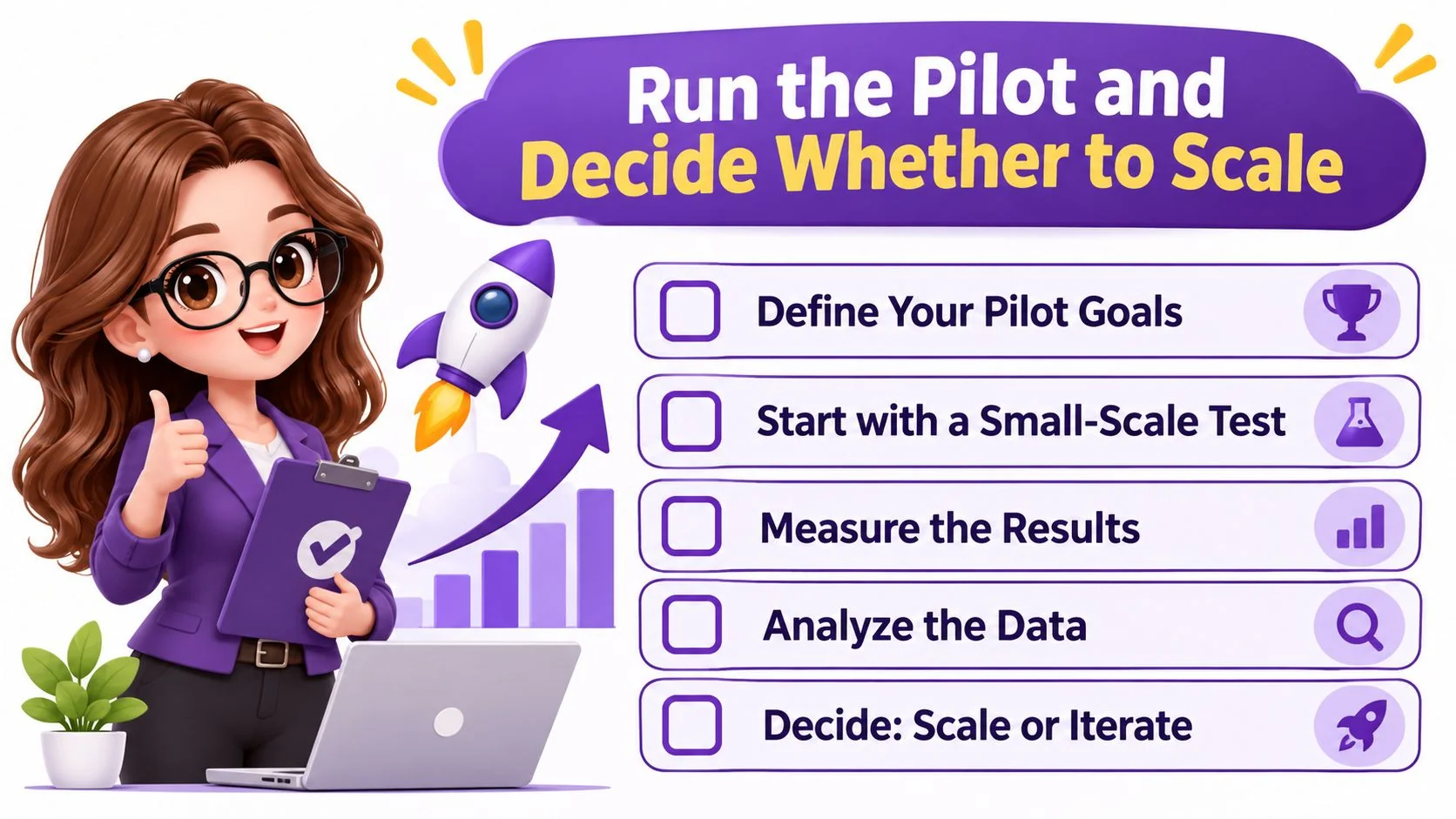
A pilot tests the checklist, not the presenter’s talent. Run a five-minute test recording on every supported OS and browser combination before any employee records a real session, whether the team records internally or evaluates companies that make training videos for production help. The choice of recorder matters here too, and the criteria for choosing a screen recorder for confidential software training should be settled before pilot devices are configured.
Five pilot checks
- Record the test: Use the planned capture target and audio setting, nothing broader.
- Scan every frame: Play the export full screen and look for sensitive content, notifications, and stray windows.
- Verify the audio track: Confirm it contains only the intended source and nobody else.
- Test as an outsider: Open the share link from a logged-out browser and confirm captions are present and access stops where it should.
- File the evidence: Store the consent record, test result, and settings screenshot with the asset.
Scale only when every step passes and the scope note is approved. The ICO guidance on monitoring workers supports requiring a documented purpose and lawful basis, advance notice, narrow scope, a non-recording alternative, retention deadlines, access logs, and a withdrawal process before a program expands. A privacy or data-protection impact assessment should precede scaling.
Plan for refusal before it happens. An employee who declines, withdraws, or appears incidentally in someone else’s recording needs a defined path that doesn’t penalize them.
Set a quarterly audit covering which apps retain capture access, who can view recordings, whether links are externally shareable, and whether retention has expired. Stop the pilot if any test fails frame review or an unauthorized person appears. A failed pilot is the checklist working, not the checklist failing.
Once the checklist is approved and a pilot recording passes every gate, the next step is turning that clean capture into something employees can actually learn from. Tutorial AI turns an approved screen recording into a polished tutorial video and a written step-by-step guide with screenshots, with the script, narration, and steps available for review and editing before anything is shared. Record one cleared walkthrough, review the generated output against the current interface, and publish only after it passes the same frame and audience checks described above.