A support agent has just watched a customer’s workflow fail, but the error disappears after a refresh. Engineering needs evidence, and a screenshot of the final message won’t explain what happened before it. The recording needs to preserve the conditions that triggered the defect without exposing the customer’s account.
The practical answer to how to record a software bug reproduction video is straightforward: establish a known starting state, capture the smallest complete action sequence, show the failure, explain expected versus actual behavior, and attach the technical context. The useful deliverable isn’t a polished demonstration. It’s evidence another person can follow without guessing.
What a Bug Reproduction Video Is Actually For
A bug reproduction video lets an engineer observe what the reporter did, not just what the reporter remembers doing. Its purpose is to make the sequence reconstructable: the selected account, the page already open, the input entered, the interaction performed, and the resulting application state.
A field study of bug reproduction involving 16 developers described reproduction as a collaborative process beginning with a customer or tester’s failure report, with developers identifying explicit reproduction steps and trace logs as the most important evidence. That makes reproducibility, rather than presentation quality, the right standard for evaluating a recording.
Evidence rather than a product demonstration
A product walkthrough can skip setup because its audience wants to understand a feature. A defect recording can’t skip setup when that setup determines whether the failure occurs.
Consider a hypothetical permissions defect: an export fails for a restricted account but succeeds for an administrator. A close-up of the error demonstrates failure, yet hides the account context that distinguishes the affected workflow.
A useful evidence package answers:
- Starting conditions: Which application state and account permissions were present?
- Triggering actions: Which clicks, keystrokes, gestures, or inputs preceded the failure?
- Observable result: What changed, failed to change, or appeared unexpectedly?
- Supporting context: Which written steps and technical artifacts accompany the recording?
Practical rule: A developer should be able to reconstruct the scenario without treating the reporter’s cursor movements as a puzzle.
What video can’t establish alone
Video shows visible behavior, but it doesn’t explain every internal condition. A stalled interface doesn’t reveal whether a request failed, whether the application rejected an input, or whether a background process remained active.
The reporter should therefore treat footage as one component of the report, alongside written steps, logs, and environment metadata. Narration can clarify observations, but it shouldn’t turn an unconfirmed explanation into a diagnosis.
The distinction matters for customer-facing teams. A support agent can confidently document an observed failure without claiming to know its root cause.
Pre-Recording Checklist That Prevents Wasted Captures
Preparation should remove uncertainty without removing the defect. A clean environment is useful for comparison, but blindly clearing state can destroy the conditions engineering needs to investigate.
The checklist below provides a capture-preparation reminder. Its duration target is an editorial convenience, not a reason to omit necessary evidence.
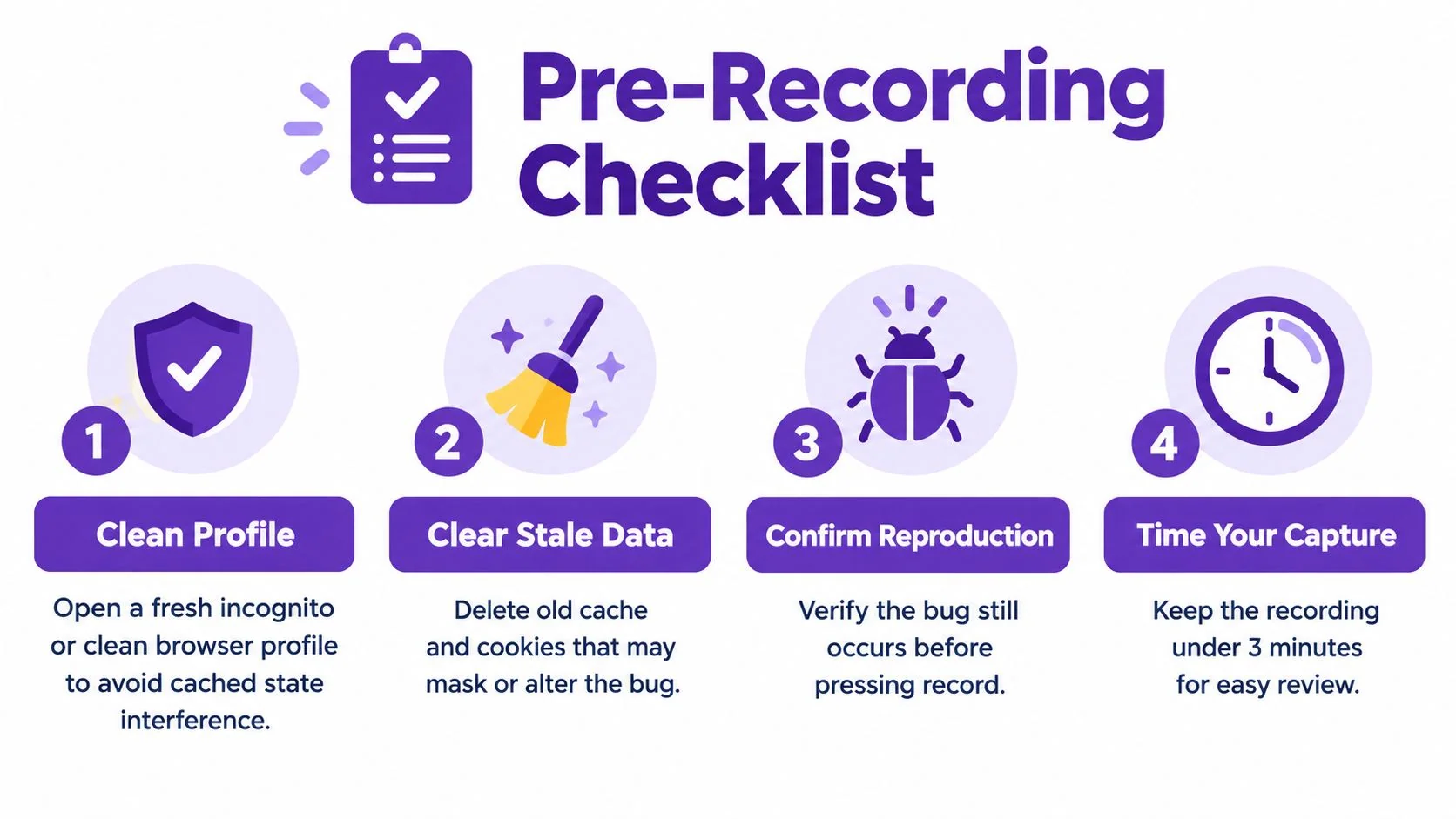
Establish a controlled comparison
Mozilla’s bug-writing guidance emphasizes checking reproducibility, using a clean profile, specifying precise steps, and documenting expected and actual results. The practical application is to compare the original environment with a clean setup before deciding what to record.
- Preserve the original conditions: Note relevant permissions, settings, extensions, and test data before changing anything.
- Try a clean profile: Record whether the defect persists. An incognito window can be a useful comparison, but it shouldn’t be treated as interchangeable with every clean-profile test.
- Remove unrelated variables selectively: Clear stale data or disable extensions when appropriate, then document whether the outcome changes.
- Confirm the trigger: Run the proposed reproduction recipe before starting the capture.
If the bug occurs only in the original profile, that’s evidence rather than a failed preparation step. The report should describe the difference instead of presenting a cleaned-up scenario that no longer reproduces.
Prepare the environment card and outcome statement
The reporter should collect the application name and version, build identifier where available, operating system, browser, and device details. Relevant account role, feature configuration, and starting page belong beside those details.
A compact environment card can appear at the beginning of the recording without requiring a tour through unrelated settings.
The expected-versus-actual statement should also be written before capture. For a hypothetical export defect, it might read: Expected: the export downloads. Actual: the interface remains in a loading state and no download appears.
Preparation is complete when the reporter knows what to show, what to leave out, and which conditions must remain unchanged. Recording first and reconstructing those details afterward creates avoidable uncertainty.
Recording on Windows, macOS, and Chrome
Desktop capture choices should follow the defect’s boundaries. A single-window recording suits an isolated application workflow; broader capture is preferable when the reproduction crosses applications, opens another window, or depends on desktop focus.
The platform overview below shows possible starting paths. Availability and controls should be checked on the actual device before the evidence capture.
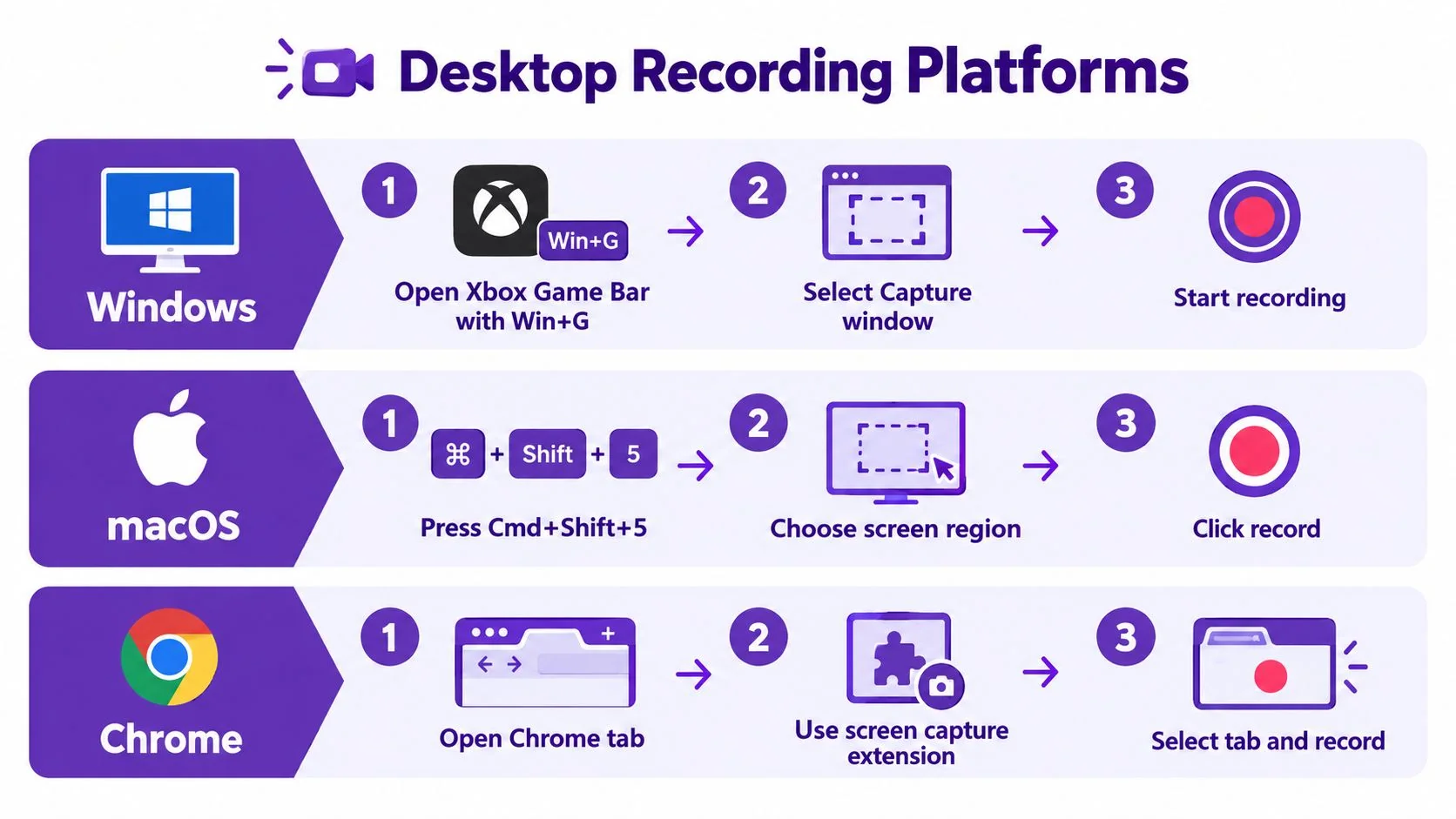
Windows capture paths
Where Xbox Game Bar capture is available, the reporter can open it with Win+G, select the capture controls, and run a test recording of the target application. That rehearsal should establish whether the required windows and transitions appear in the saved asset.
For environments where it remains available, Steps Recorder offers a structured alternative. Microsoft’s Steps Recorder workflow describes starting capture, performing the reproduction, stopping, reviewing, and saving a ZIP file, with pause, resume, and annotation controls.
That output is a step record, not a substitute for continuous video when timing, animation, or transient behavior matters. A screenshot sequence suits discrete actions; continuous footage better preserves the transition between them.
macOS and Chrome capture paths
On macOS, Command+Shift+5 provides a starting point for selecting a screen-recording area. The reporter should choose an area large enough to retain relevant interface context, inspect the available microphone options, and validate the saved result before recording the defect.
For Chrome workflows, an organization-approved screen-capture extension can provide a browser-centered path. The reporter should check its capture scope, permissions, and storage behavior rather than assuming that every extension handles tabs, windows, and audio identically.
A tab-only capture is appropriate only when everything diagnostic stays inside that tab. Browser permission prompts or interactions outside its boundaries require a wider capture or separately documented evidence.
Audio and readability decisions
Microphone audio carries the reporter’s explanation. System audio carries application sounds, which matter only when sound is part of the failure or its context. Tutorial AI’s guide to screen recording with sound provides a related starting point for planning those audio requirements.
The following video accompanies the desktop recording workflow.
- Stable capture: Favor a consistent frame rate and readable error text over decorative effects.
- Visible cursor: Keep the pointer visible without parking it over the control or message under inspection.
- Controlled zoom: Use close-ups for supplemental evidence, not at the expense of the core sequence.
Native capture suits straightforward evidence. More configurable recording tools are appropriate when capture boundaries, audio routing, or supplemental views require additional control.
Recording on iPhone and Android
Mobile reproduction needs an explicit account of touch interaction. A recording can show the resulting interface while leaving the viewer uncertain about where a finger landed or which gesture caused the transition.
The mobile interaction below illustrates the distinction between performing an action and making that action understandable to a remote reviewer.
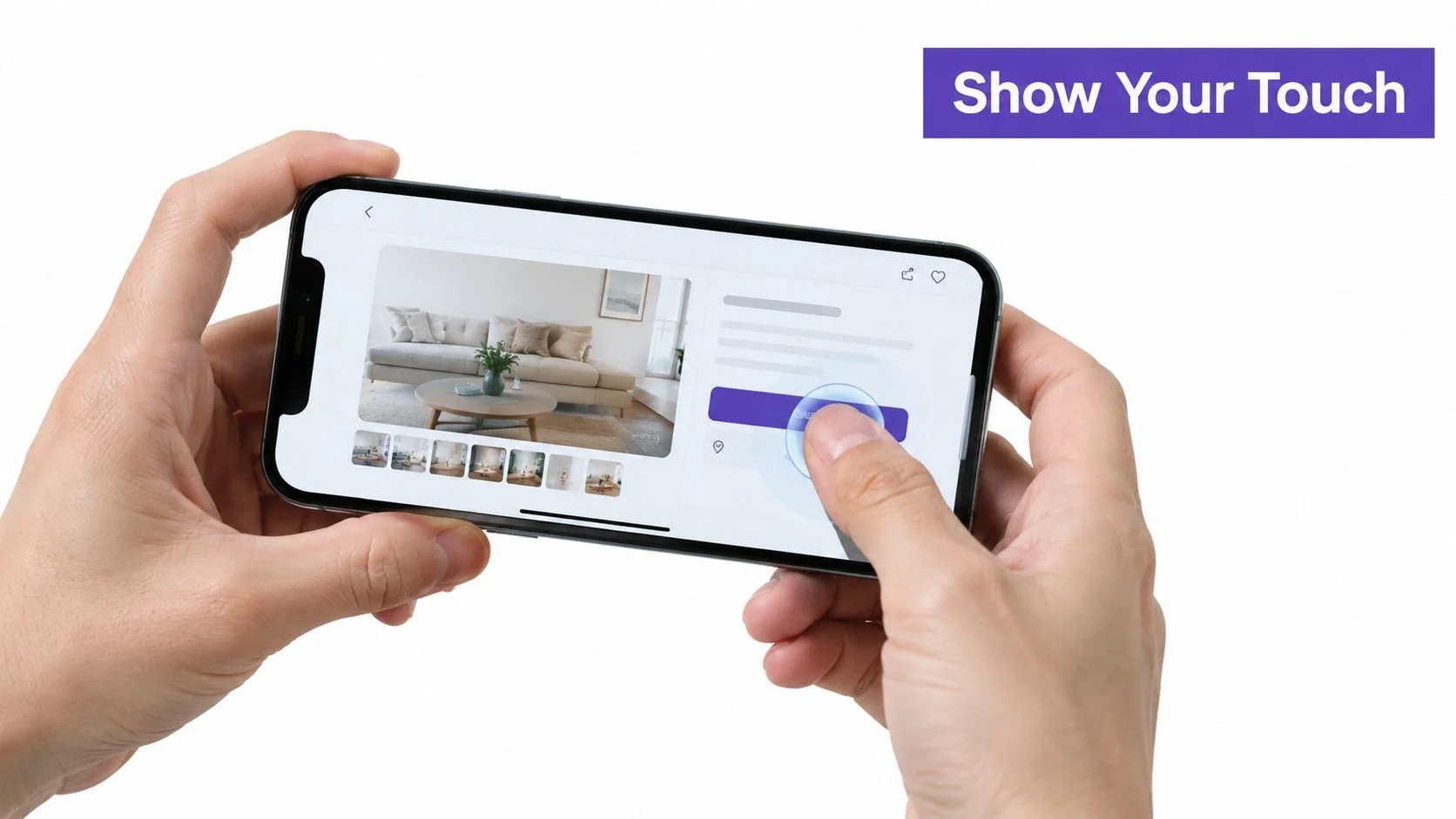
iPhone recording with deliberate audio choices
For an iPhone capture, the reporter should locate Screen Recording in Control Center and check microphone status before starting. A silent capture is appropriate when annotations and written steps can explain the interaction; microphone narration is useful when an invisible gesture needs clarification.
The saved file should be checked rather than assuming that the intended audio was captured. If application sound is diagnostic, the rehearsal should specifically test its presence.
The opening context should identify the device, iOS version, application version, and relevant app state. Version information can appear in a privacy-safe environment note rather than through a lengthy settings tour.
Android recording and gesture visibility
On Android, the reporter should check Quick Settings for a built-in screen recorder and inspect the available audio and touch-display controls. Menu names and options vary by device, so instructions should match the handset being tested.
Where touch indicators are available and permitted, they can clarify taps. They don’t remove the need to describe swipes, long presses, or gesture direction.
- Gesture description: Written steps should distinguish a tap from a press-and-hold or drag.
- Orientation: The record should identify whether rotation occurs during the triggering sequence.
- Network conditions: Relevant connection changes belong in the report rather than being left for engineering to infer.
- Keyboard state: The capture should show whether the keyboard is open when the affected control is used.
A visible interface transition doesn’t necessarily reveal the physical interaction that caused it.
A USB-based capture or mirroring tool is worth evaluating when the native result is unreadable or interaction visibility is inadequate. Its use should be documented, and the reporter should check whether the defect behaves the same with and without that setup.
Pointer input through a mirrored session shouldn’t replace a touch-only reproduction. If the interaction changes, the evidence needs to say so.
Structuring the Capture So Engineers Can Act On It
A strong capture has a deliberate opening, an uninterrupted triggering sequence, and an inspectable ending. The reporter’s job is to make each state change legible without turning the recording into a narrated tour of the entire product.
The structure below offers pacing cues. Fixed timing suggestions shouldn’t override the time needed to observe a meaningful state change.
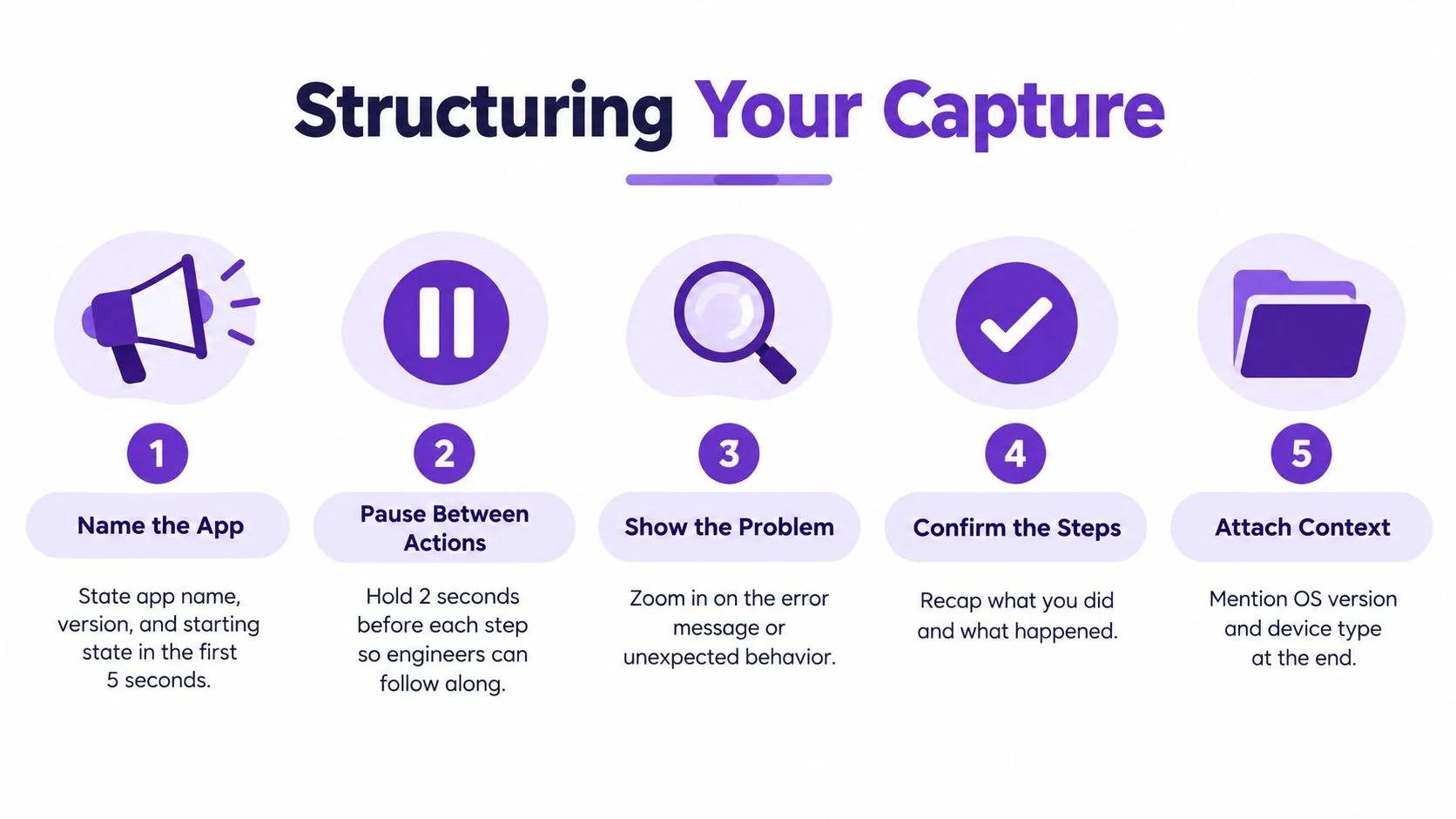
Narrate actions and outcomes, not theories
Atlassian’s bug-report guidance recommends explaining what the user clicks, what should happen, and what happens instead, rather than assuming the defect is self-evident. That provides a useful narration discipline: action, expected result, actual result.
For a hypothetical form defect, the narration could describe selecting Save, explain that the completed form should close, and state that the form remains open with an error. It shouldn’t claim that a database write failed unless supporting evidence establishes that.
On-screen annotations suit short labels, account-state summaries, or recordings likely to be reviewed without sound. Voice is preferable when the interaction requires explanation that would otherwise cover the interface with text.
- Before the trigger: Identify the starting state and relevant application details.
- During the sequence: Perform the written actions in order, allowing each meaningful result to become visible.
- At failure: Hold the affected state long enough for inspection.
- At the ending: State the expected-versus-actual contrast and any observed workaround.
Preserve transitions and separate deeper inspection
The core reproduction should remain continuous. A repeat attempt can demonstrate that the sequence remains reproducible, but the transition into that attempt shouldn’t be edited away.
Mozilla’s Bugzilla usage guidance supports checking reproducibility and documenting browser, operating-system, and configuration details. For video, those principles mean retaining the context needed to interpret the observed failure.
A separate diagnostic pass can focus on console errors, network activity, or logs. It should be labeled as supplemental evidence rather than spliced into the core capture as though it happened in the same run.
For React Native defects, engineers seeking a related debugging resource can consult AppLighter’s debugging guide. The reproduction report should still distinguish directly observed behavior from any later investigation or hypothesis.
Redacting Customer Data Without Destroying Diagnostic Value
Blurring a password isn’t a complete privacy workflow. Sensitive information can appear in notifications, dropdowns, scrolling content, URLs, or diagnostic panels, while an overly broad mask can hide the very state needed to reproduce the defect.
The difficult trade-off is privacy versus diagnostic context. An account’s identity may be irrelevant, but its permissions, configuration, and workflow history may matter.
A controlled private and shareable workflow
Accessibility-focused bug-reporting guidance recommends removing session tokens and personal data before sharing, using access-controlled storage, and preserving raw outputs and timestamps for comparison. A practical implementation separates the original evidence from the version distributed more broadly.
- Private capture: Where organizational policy permits, retain necessary diagnostic context in approved, access-controlled storage.
- Shareable copy: Replace or obscure sensitive fields, then document which values changed and whether those substitutions affect reproduction.
Permission to capture production data shouldn’t be assumed. A privacy-safe test account is preferable when it can preserve the relevant conditions, and secrets that aren’t needed for diagnosis shouldn’t be captured deliberately.
A redaction note might explain that the customer name was replaced while the account role and feature configuration remained unchanged. That gives engineering context without requiring exposure of the original identity.
Verify the exported file, not just the editor
Static blur works only if the sensitive region stays within the mask. Scrolling or a newly opened panel can move a secret outside it.
The reviewer should scrub the exported recording frame by frame around transitions, inspect notifications and overlays, and listen for confidential information in narration. Tutorial AI’s guide to blurring sensitive information in video is a related resource for planning the visual treatment.
Privacy checkpoint: Redaction is complete only after the distributed file has been reviewed.
The original should remain restricted under the organization’s retention rules. If an authorized engineer needs an unredacted detail, the team can provide controlled access rather than attaching the raw capture to a broadly visible ticket.
A slightly longer recording with an explicit account-state summary can be more useful than a shorter clip that either leaks data or conceals essential conditions.
Saving, Naming, and Pairing the Video With Written Steps
The final handoff should make the evidence easy to locate, open, and cross-reference. A descriptive filename can combine the ticket identifier, affected workflow, and capture role, such as ticket-export-failure-core or ticket-export-failure-console.
The team should use a video format and codec supported by its actual issue tracker and approved playback tools. MP4 with H.264 is a reasonable candidate to test, but successful playback in the destination matters more than a format preference.
Common Recording Choices for Bug Reproduction
| Setting | Recommended | Why it matters |
|---|---|---|
| Capture scope | Complete relevant application context | Prevents off-screen actions from becoming unexplained |
| Frame rate | Stable capture suited to the behavior | Keeps transitions interpretable |
| Audio | Narration when useful, application sound when diagnostic | Avoids unnecessary noise |
| Editing | Continuous core capture, separate supplemental views | Preserves the actual sequence |
| Export | A tested format with readable text | Prevents compression or playback problems |
| Hosting | Approved storage with appropriate access controls | Balances review convenience with privacy |
Pair the footage with an executable recipe
A study of mined software issues found that crash-reproduction steps affected resolution time in approximately 70% of projects, while stack traces affected it in approximately 76%, and more than 70% of reports lacked the key elements examined on average. The practical lesson is to package the recording with the written evidence rather than making engineers extract everything from playback.
The accompanying report should include preconditions, ordered actions, expected and actual results, environment metadata, and relevant logs or stack traces. A minimal test case belongs alongside them when available.
The guide to writing step-by-step instructions can help documentation teams make that recipe precise. Each written action should correspond to what appears in the capture.
Final review and handoff
The reviewer should watch at normal speed, test the written recipe independently where possible, and confirm that intended recipients can access the asset.
- Prep: Preserve relevant conditions and verify the trigger.
- Capture: Show the complete causal sequence.
- Structure: Make the action and outcome contrast explicit.
- Redact: Review the shareable export for sensitive content.
- Package: Add the recipe and diagnostic artifacts.
- Hand off: Test playback and access permissions.
Common failures have direct fixes: a failure-only clip needs its setup restored; hidden actions need a wider view or explicit documentation; spliced environments need separate, labeled recordings.
For customer education, the next asset should usually demonstrate the verified workaround or corrected behavior, not republish the defect as normal usage. That turns investigation into useful help-center content without confusing evidence with instruction.
Tutorial AI turns a demonstrated software process into a tutorial video and a written guide with screenshots, with review and editing before sharing. Once the workaround or fix is verified, the team can record that workflow and use the resulting content for customer support or internal training. Teams can visit the product to explore that recording-to-tutorial workflow while keeping the original bug evidence separate.